

AI tools are becoming part of our daily life.
From chatting with virtual assistants to creating amazing pictures, AI is making things faster and easier.
One tool that is gaining huge popularity is Perplexity AI.
It is known for its smart answers, fast search, and now — image generation.
But here’s the exciting part.
You can use Perplexity AI to create images and share them on WhatsApp without installing extra apps.
Imagine this:
You think of a creative idea.
You type it into Perplexity AI.
In seconds, you have a stunning AI-generated image ready to share with your friends or clients on WhatsApp.
In this guide, we’ll show you:
-
What Perplexity AI is and how it works.
-
How to use it for image generation.
-
How to share those images on WhatsApp in a few seconds.
-
Tips to get the best results.
-
Common issues and how to solve them.
By the end, you’ll know exactly how to turn your ideas into pictures and share them instantly.
What Is Perplexity AI?
Perplexity AI is a smart AI assistant.
Think of it as Google search + ChatGPT in one place — but faster and more direct.
It can:
-
Answer questions in a natural way.
-
Summarize information from the web.
-
Suggest ideas for your projects.
-
And now, generate images from your text prompts.
When you ask it for an image, it uses AI image generation technology to create visuals from scratch.
You simply describe what you want, and it creates it.
For example:
“A futuristic city with flying cars, in anime style.”
In a few seconds, Perplexity AI will show you a unique image based on your description.
Unlike tools like MidJourney or DALL·E, Perplexity AI is simple to use.
You don’t need complex commands.
You just type what you imagine in plain English, and it works.
Can Perplexity AI Be Used on WhatsApp?
Here’s the truth:
Perplexity AI does not have an official WhatsApp bot right now.
You cannot chat directly with it inside WhatsApp like you can with some AI bots.
But there’s a simple workaround.
You can still generate your images using Perplexity AI and share them instantly on WhatsApp in two main ways:
Method 1 – Using a Browser on Your Phone or Desktop
-
Open Perplexity AI in Chrome, Safari, or any browser.
-
Generate your image.
-
Download it to your phone or computer.
-
Send it on WhatsApp like any other photo.
This method is fast and works without any extra setup.
Method 2 – Using Third-Party Automation Tools
Some tools let you connect Perplexity AI to WhatsApp using APIs or automation services like:
-
Zapier
-
Make (Integromat)
-
Pabbly Connect
In this setup, you type your image request in a connected form or chat, and it sends the image to your WhatsApp automatically.
However:
-
This method requires some technical setup.
-
It might cost money.
-
It’s not necessary for most users — the browser method is enough.
Benefits of Generating Images on WhatsApp with Perplexity AI
Using Perplexity AI for images on WhatsApp is more than just a cool trick.
It’s practical and time-saving.
Here are the biggest benefits:
1. Instant Sharing with Friends or Clients
When you create an image, you can send it to anyone in seconds.
No need to upload it somewhere first.
If you are brainstorming with a friend or presenting ideas to a client, this speed is a game changer.
2. No Extra App Required
Many AI tools need you to install an app or join a Discord server.
With Perplexity AI, you only need a browser.
Your phone or computer already has one — so you can start right away.
3. Works on Both Mobile and Desktop
You can use Perplexity AI from:
-
Your phone browser and share to WhatsApp mobile app.
-
Your desktop browser and share via WhatsApp Web.
This flexibility means you can work from anywhere.
4. Great for Work and Fun
Whether you’re creating:
-
Marketing graphics
-
Concept art for a project
-
A funny meme
-
A greeting card
Perplexity AI makes it quick and easy.
5. Private and Direct
You’re not posting to a public gallery (like MidJourney does on Discord).
Only the people you share with will see your images.
Step-by-Step Guide: How to Use Perplexity AI to Generate Images on WhatsApp
Now let’s get into the exact process.
We’ll go through this step-by-step, so even beginners can follow along.
Step 1 – Open Perplexity AI
On Mobile:
-
Open your browser (Chrome, Safari, Edge, etc.).
-
Go to perplexity.ai.
-
You can log in for better features, but it works without an account too.
On Desktop:
-
Open your preferred browser.
-
Visit perplexity.ai.
-
Log in or continue as a guest.
Tip: Bookmark the page so you can open it quickly in the future.
Step 2 – Enable Image Generation Mode
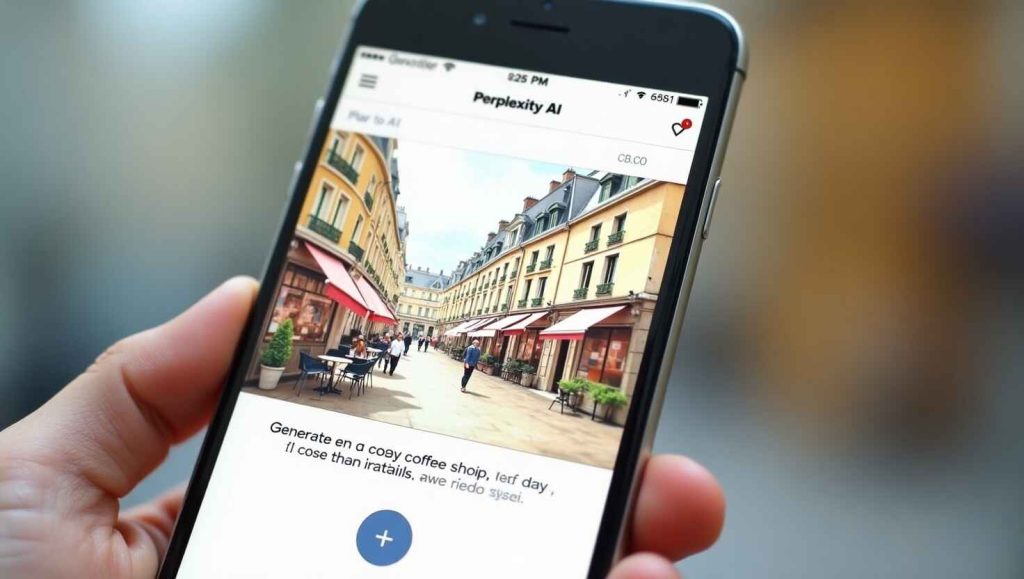
Perplexity AI works mainly as a chatbot, so you need to let it know you want an image.
-
In the chat box, simply type your request starting with something like:
“Create an image of…”
or
“Generate a picture of…” -
Some versions of Perplexity AI have a small “Image” button you can click before typing your prompt.
Tip: The more details you add, the better the image will be.
Example:
✅ “A cozy coffee shop in Paris, rainy day, watercolor painting style.”
❌ “Coffee shop.”
Step 3 – Create Your AI Image
-
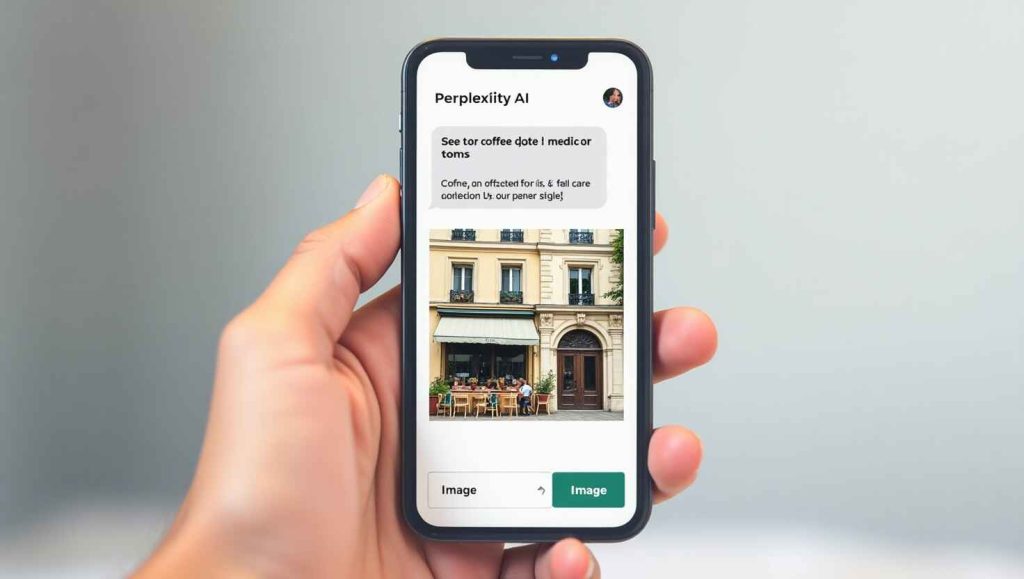
Type your detailed prompt.
-
Hit Enter or click the send button.
-
Wait a few seconds while Perplexity AI generates your image.
It will usually give you:
-
A preview of the image.
-
Sometimes multiple variations to choose from.
Pro Tip: If you don’t like the result, try:
-
Adding more details.
-
Changing the style.
-
Asking for “realistic photo” or “cartoon style” depending on your need.
Step 4 – Download or Copy the Image
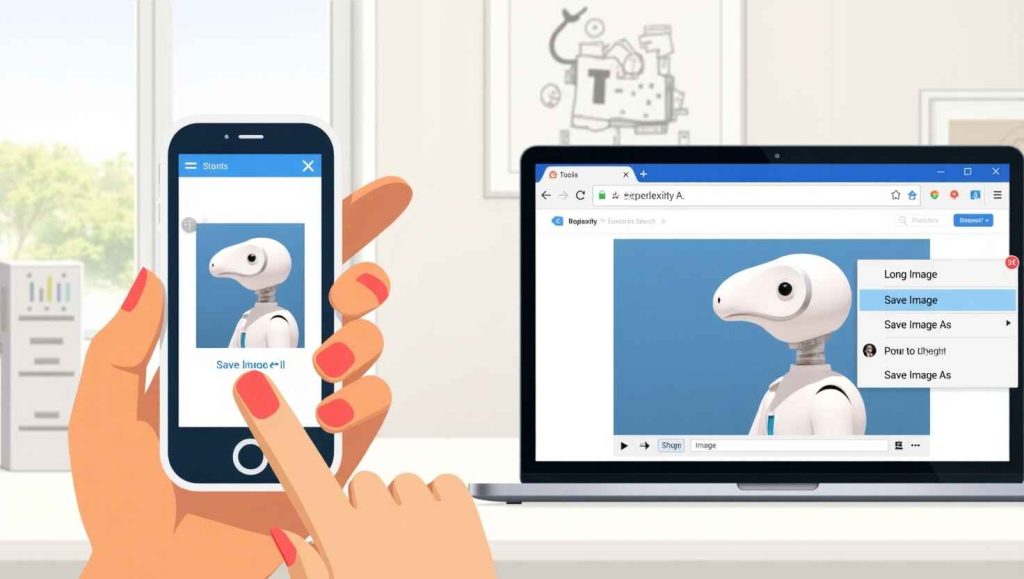
Once Perplexity AI creates your image, you have two ways to get it onto WhatsApp:
Method 1 – Download the Image
On Mobile:
-
Long press the image.
-
Select Download Image or Save to Photos.
-
Your phone will store it in the gallery.
On Desktop:
-
Right-click the image.
-
Select Save Image As.
-
Choose your folder and save.
Why use download?
Downloading ensures you keep the original quality.
Method 2 – Copy Image or Image Link
Sometimes you don’t want to download — you just want to share quickly.
On Mobile:
-
Tap the share icon on the image and select Copy Link.
-
Paste that link into WhatsApp.
On Desktop:
-
Right-click the image → Copy Image or Copy Image Address.
-
Paste it directly into the chat box on WhatsApp Web.
When to use link sharing?
If you want someone to see the AI image without downloading, sharing the link is faster.
Step 5 – Share the Image on WhatsApp
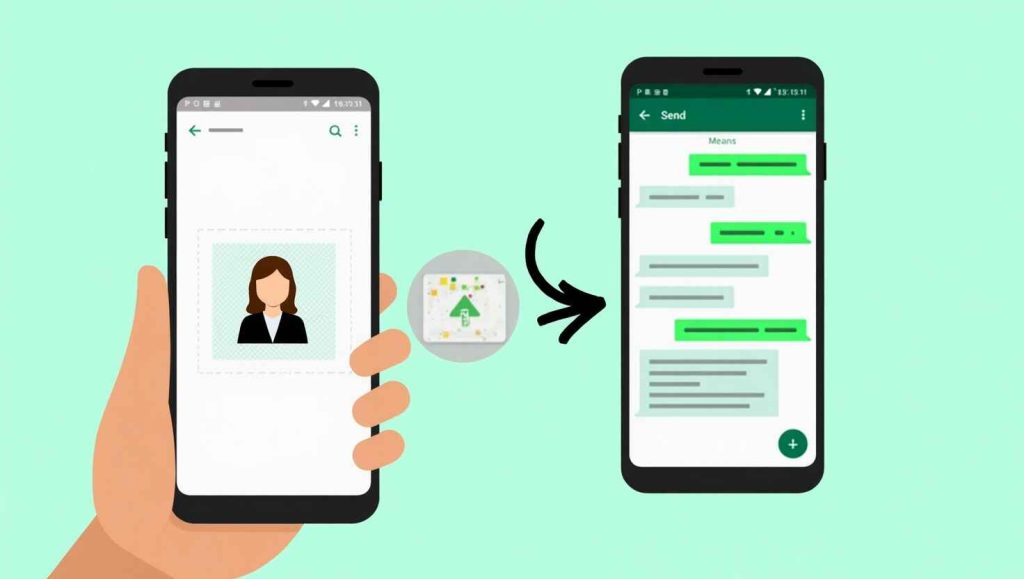
Now that you have your image, let’s send it.
I. Sharing from Mobile:
-
Open WhatsApp.
-
Select the chat or group you want.
-
Tap the attachment icon ().
-
Select Gallery or Photos and pick your image.
-
Tap Send.
Pro Tip: If you want to keep the highest quality, send the image as a Document instead of a Photo.
This avoids WhatsApp’s image compression.
II. Sharing from Desktop (WhatsApp Web or App):
-
Open WhatsApp Web in your browser or the WhatsApp desktop app.
-
Go to the chat where you want to send the image.
-
Drag and drop the image file OR click the attach button and choose the file.
-
Send.
Shortcut: If you copied the image earlier, simply paste (Ctrl+V) into the chat box.
Tips to Get Better Images from Perplexity AI
AI images depend heavily on how you write your prompt.
Here are proven tips:
1. Be Specific
Don’t just say “a mountain”.
Say “a snow-covered mountain peak at sunrise, with pink clouds, ultra-realistic photo style”.
The AI will produce richer, more detailed visuals.
2. Add Style Instructions
Tell Perplexity the art style you want:
-
“Realistic photography”
-
“Cartoon style”
-
“Watercolor painting”
-
“3D render”
-
“Anime style”
3. Include Mood and Atmosphere
Mood words can make your image stand out:
-
“Dreamy”
-
“Cinematic”
-
“Futuristic”
-
“Dark and moody”
-
“Bright and cheerful”
4. Mention Color Themes
Example:
“A cozy cafe with warm brown tones and golden lighting.”
5. Use Composition Keywords
These guide the layout:
-
“Close-up shot”
-
“Wide-angle view”
-
“Portrait orientation”
-
“Top-down perspective”
6. Experiment and Iterate
If you don’t like the first result, don’t give up.
Small changes to your prompt can lead to big improvements.
Common Issues and How to Fix Them
Even though Perplexity AI is easy to use, you might face some small issues.
Here’s how to solve them quickly:
Issue 1 – Image Not Generating
Possible Causes:
-
Weak internet connection.
-
Perplexity AI server is busy.
-
Your prompt is too vague.
Fixes:
-
Check your internet connection.
-
Refresh the Perplexity AI page.
-
Make your prompt more descriptive.
Issue 2 – Image Quality Is Too Low
Possible Causes:
-
AI generated a smaller image.
-
WhatsApp compressed it.
Fixes:
-
Download the image instead of taking a screenshot.
-
Send the image as a Document on WhatsApp to avoid compression.
-
Use a free AI image upscaler (e.g., Upscayl, Let’s Enhance) before sending.
Issue 3 – Image Looks Different from Prompt
Possible Causes:
-
AI misunderstood your description.
-
Style or detail wasn’t clear enough.
Fixes:
-
Add style, colors, and mood details.
-
Use keywords like “realistic”, “cartoon”, or “cinematic”.
-
Shorten the prompt to focus on the most important elements.
Issue 4 – Can’t Find Download Option
Fixes:
-
On mobile, long-press the image and select Save.
-
On desktop, right-click the image and choose Save Image As.
-
If that doesn’t work, take a high-quality screenshot.
Best Use Cases for Perplexity AI Images on WhatsApp
AI image generation isn’t just for fun — it’s useful in many situations.
1. Personal Art Sharing
Create unique digital art to share with friends or post on your WhatsApp Status.
2. Memes and Funny Images
Write a fun or sarcastic prompt, get the image, and send it to your group chats.
3. Marketing and Branding
Small businesses can quickly make product mockups, ads, and posters without hiring a designer.
4. School and College Projects
Students can create creative visuals for assignments or presentations.
5. Event Invitations
Make custom birthday, wedding, or party invites and send them directly via WhatsApp.
6. Client Mockups
Freelancers can quickly generate design concepts and share them with clients for feedback.
Alternative AI Tools for WhatsApp Image Generation
While Perplexity AI is great, here are other tools you might consider:
1. MidJourney + WhatsApp Bots
-
MidJourney is famous for high-quality art.
-
You can connect it to WhatsApp using third-party bots.
-
Downside: Requires a Discord account and is not free.
2. DALL·E via ChatGPT
-
If you have ChatGPT Plus, you can use DALL·E image generation.
-
Save or copy the image and send it on WhatsApp.
-
Simple and integrated with ChatGPT’s interface.
3. Bing Image Creator
-
Uses DALL·E technology.
-
Free to use on Microsoft Edge or Bing.com.
-
Easily share results to WhatsApp from your browser.
4. Playground AI
-
More control over image editing and styles.
-
Free tier available.
-
Works well for artistic projects.
Also Read
How to Use Genie 3 AI in 2025 (Beginner’s Guide to Google’s Smart Assistant)
Gemini AI Guide: How to Use Google’s AI Assistant in 2025
What Is Janitor AI and How It Can Save You Hours of Work?
Conclusion
Perplexity AI has quickly become one of the most exciting tools for both information search and creative projects.
Its image generation feature is especially powerful because it is fast, simple, and flexible.
The best part?
You don’t need to be a tech expert to use it.
With just a phone or computer, you can create high-quality images and send them on WhatsApp in seconds.
Here’s what we covered in this guide:
-
What Perplexity AI is and why it’s unique.
-
Two simple ways to use it for WhatsApp images.
-
A step-by-step process to generate, download, and share AI images.
-
Pro tips to make your prompts more effective.
-
Troubleshooting advice for common problems.
-
Real-world use cases where AI images can save you time and boost creativity.
-
Alternatives if you want to explore other tools.
Why You Should Try It Today
-
It works without any special app — just your browser.
-
You can create anything you imagine.
-
Sharing on WhatsApp is instant.
-
It’s useful for work, school, and personal fun.
Whether you want to create a funny meme for your friends, a beautiful design for your business, or a visual for a school project, Perplexity AI can make it happen in seconds.
Final Call-to-Action
If you haven’t tried it yet, open your browser right now and visit Perplexity.ai.
Type in your first image prompt, download your creation, and share it on WhatsApp.
The sooner you start, the faster you’ll see how AI can turn your ideas into images instantly.
So go ahead — unleash your creativity, surprise your friends, and make your WhatsApp chats more colorful with Perplexity AI.